
Thursday, October 25, 2018

Thursday, October 18, 2018
Tuesday, October 16, 2018
Friday Post Oct 12 2018


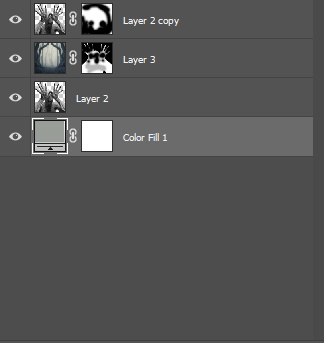


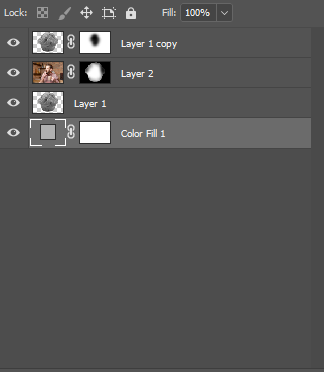
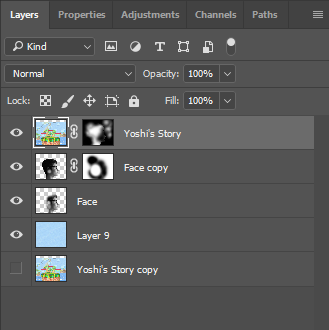
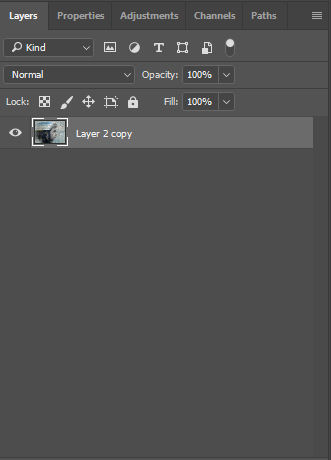
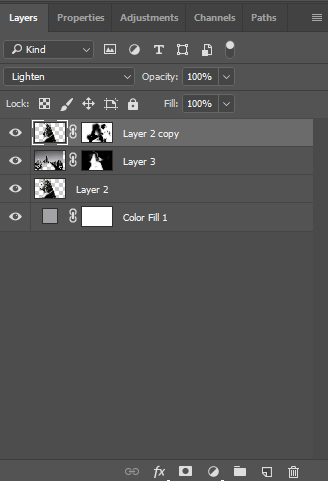
A guy eating a muffin inside of a muffin. The process is the same as the first part.
Friday, October 12, 2018
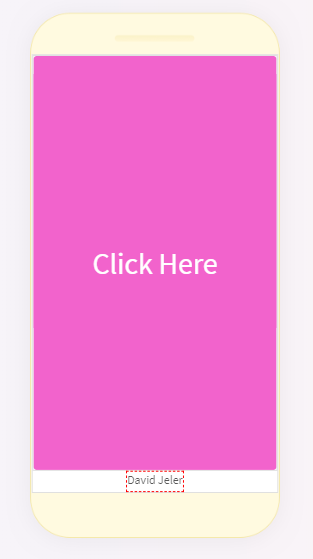
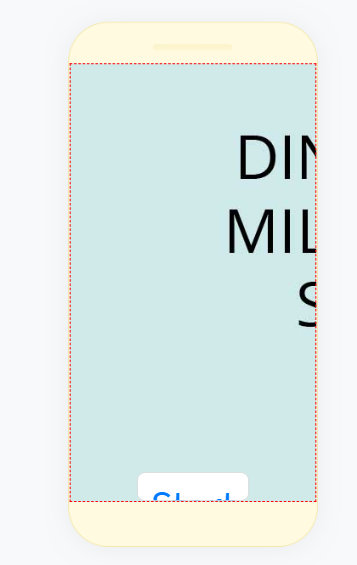
Wednesday, October 10, 2018






Wednesday, September 26, 2018
How to get the photo sharing to work
Make sure you have 2 buttons, one labeled "download", and one labeled "upload", an image, and the "RealtimeDB" and "MediaDB" components:
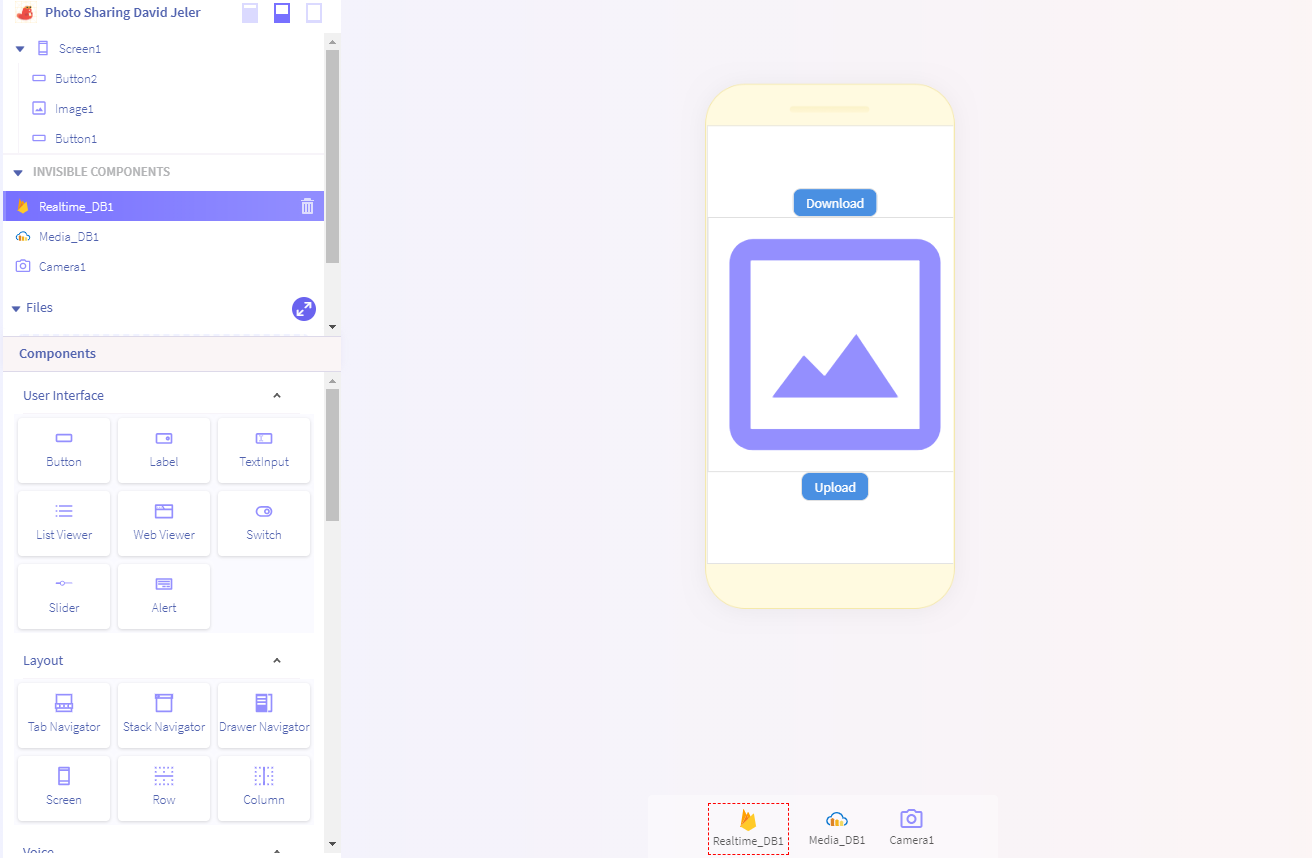
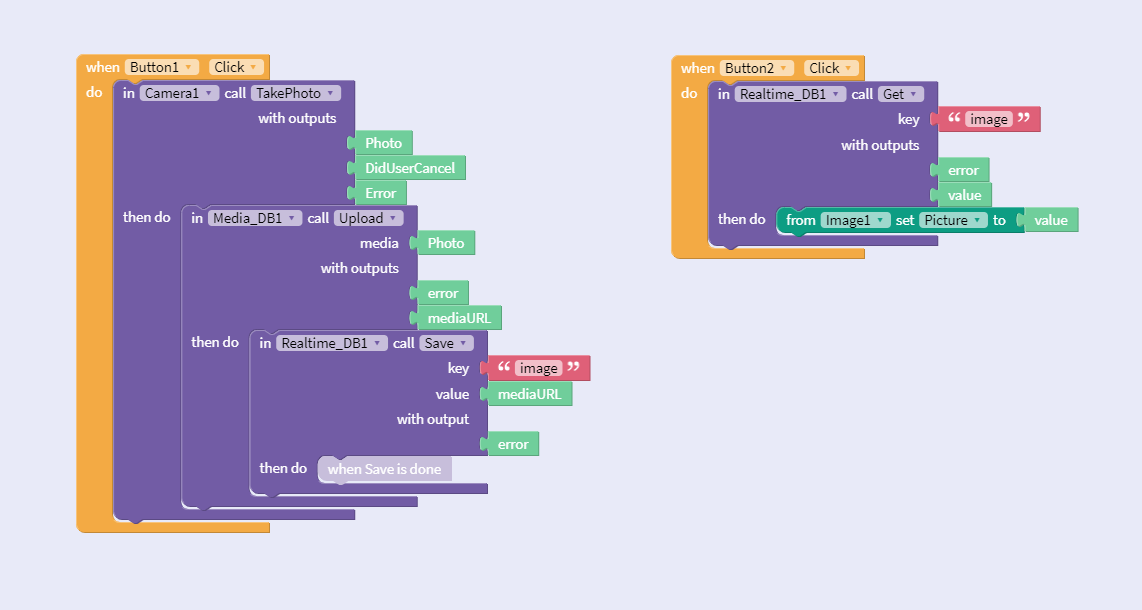
Copy this block code (Make sure Button1 is the download button and Button2 is the upload):
Make a Cloudinary account and verify your email:
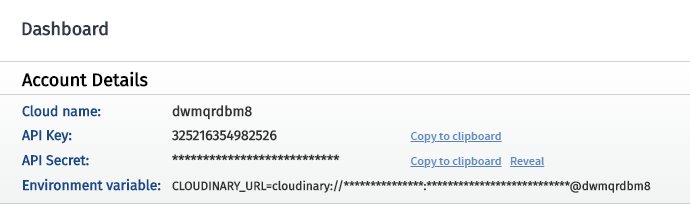
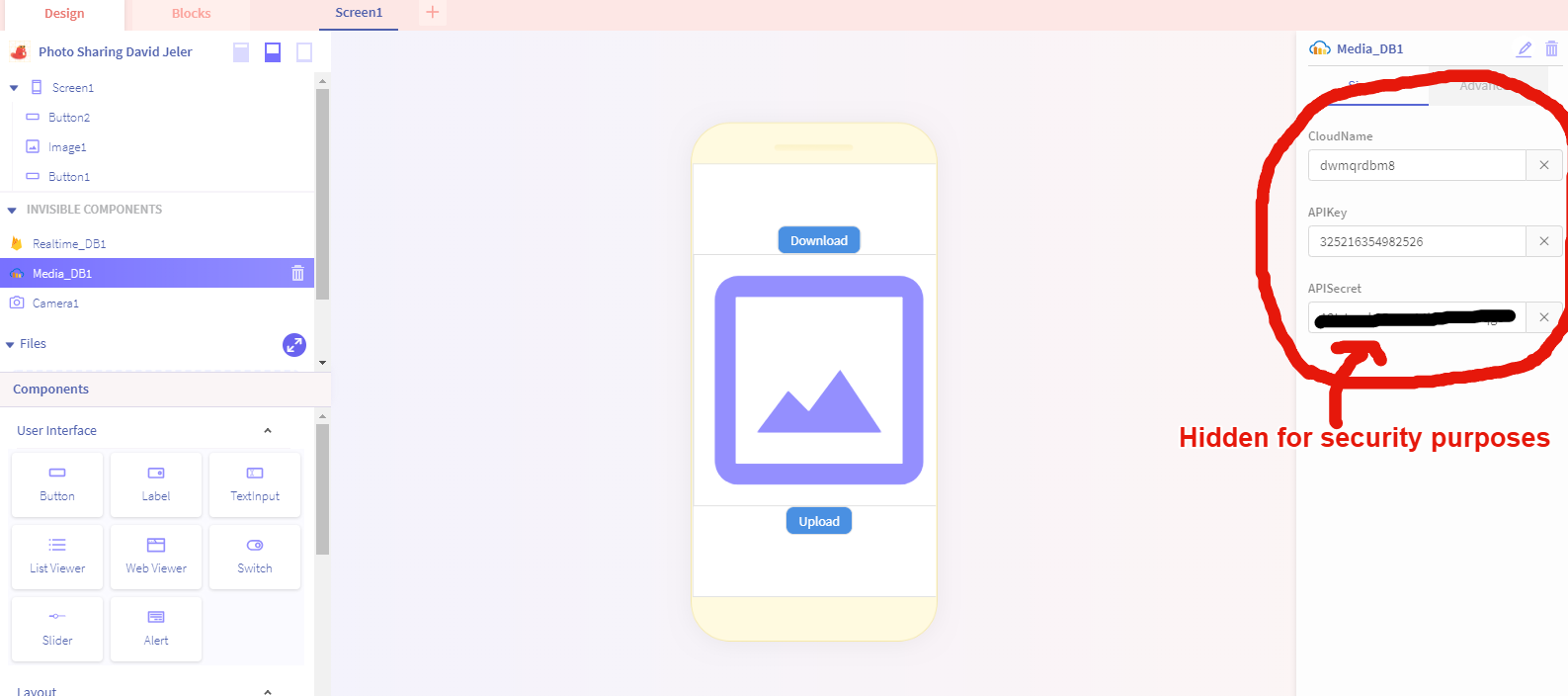
Go to your dashboard and copy and paste the Could name, API Key, and API Secret into thunkable:
Now go to Firebase, log in with your google account, and create a new project:
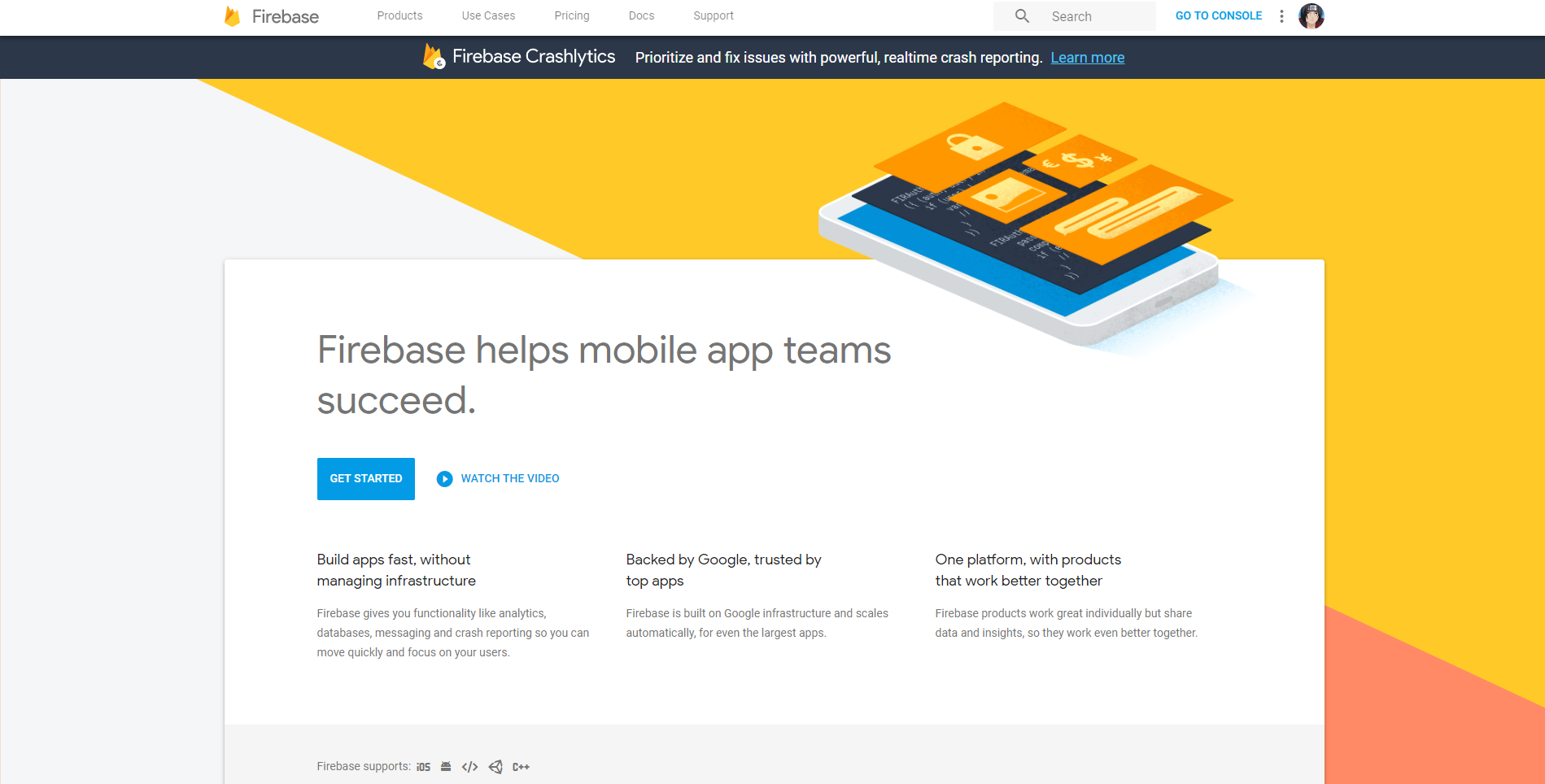
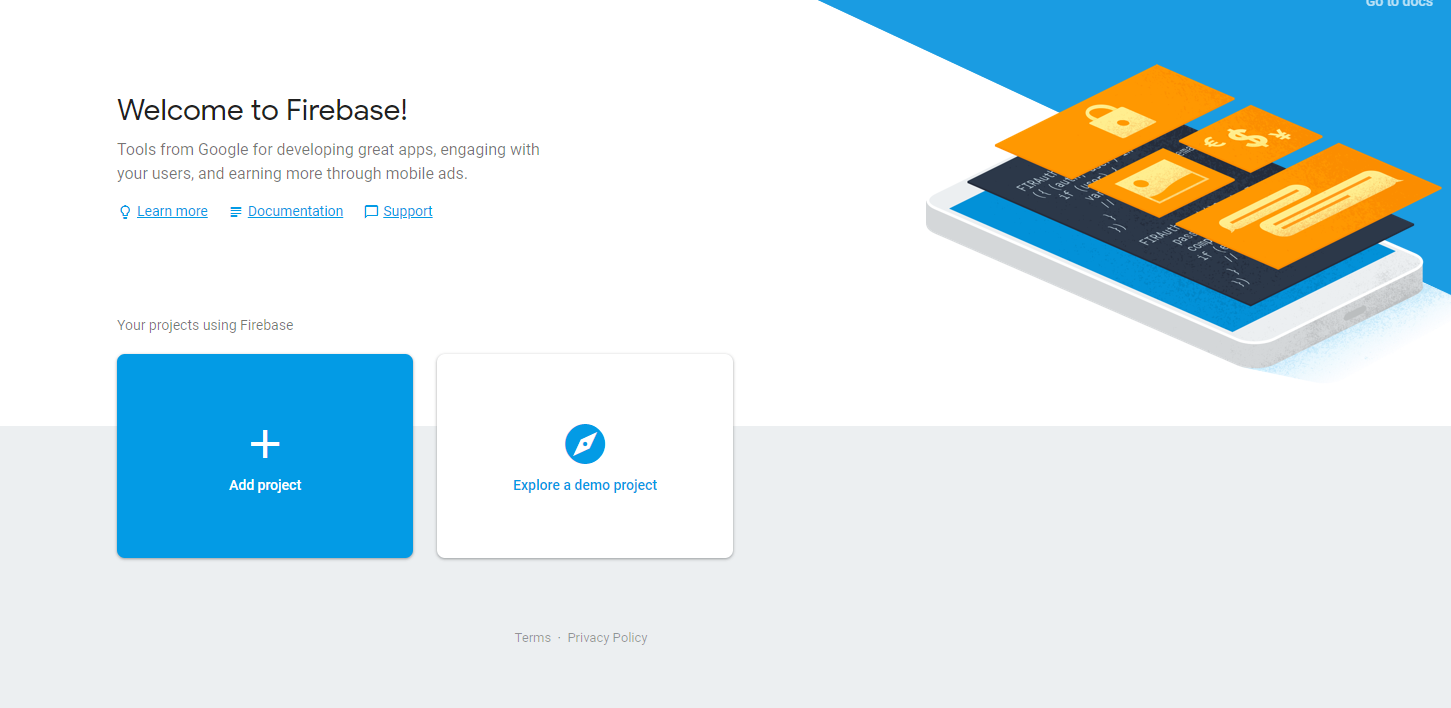
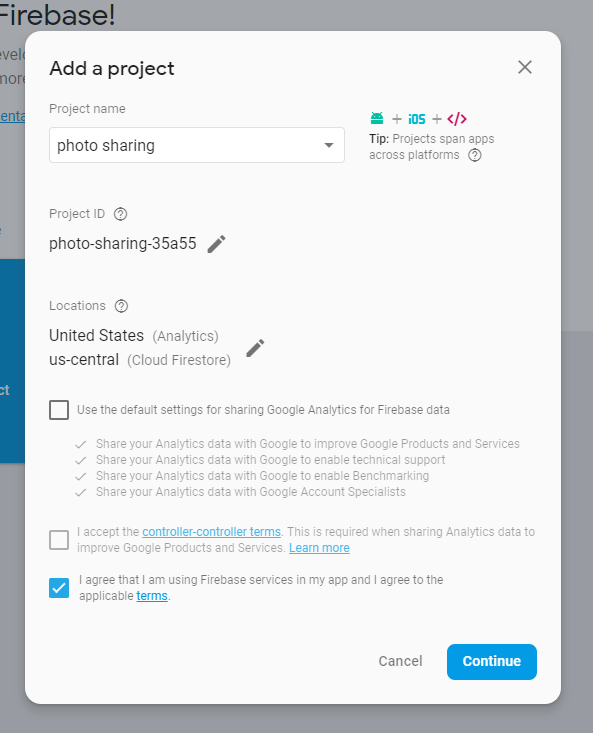
Next from the console, copy the API Key and Database URL (don't use mine) into Thunkable like I show below:

Next from the Firebase console, on the left side, go to Develop > Database and from there create a new database:
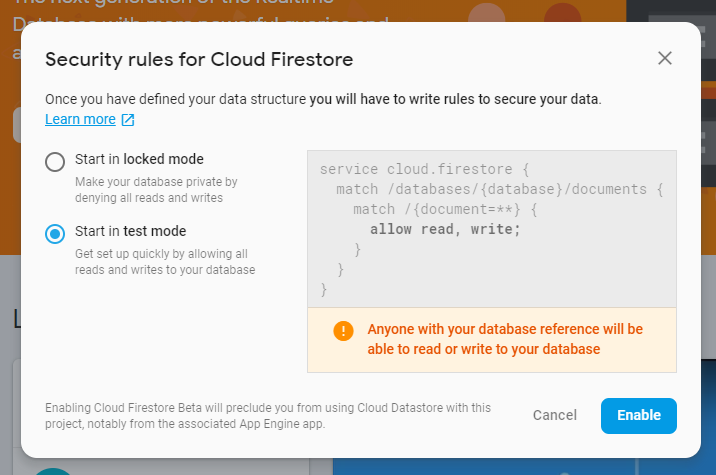
From there, at the top, switch to "Realtime Database"
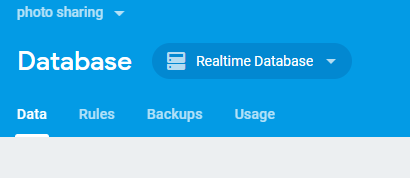
Then go to the "Rules" tab and switch the Read and Write permissions to: "True"
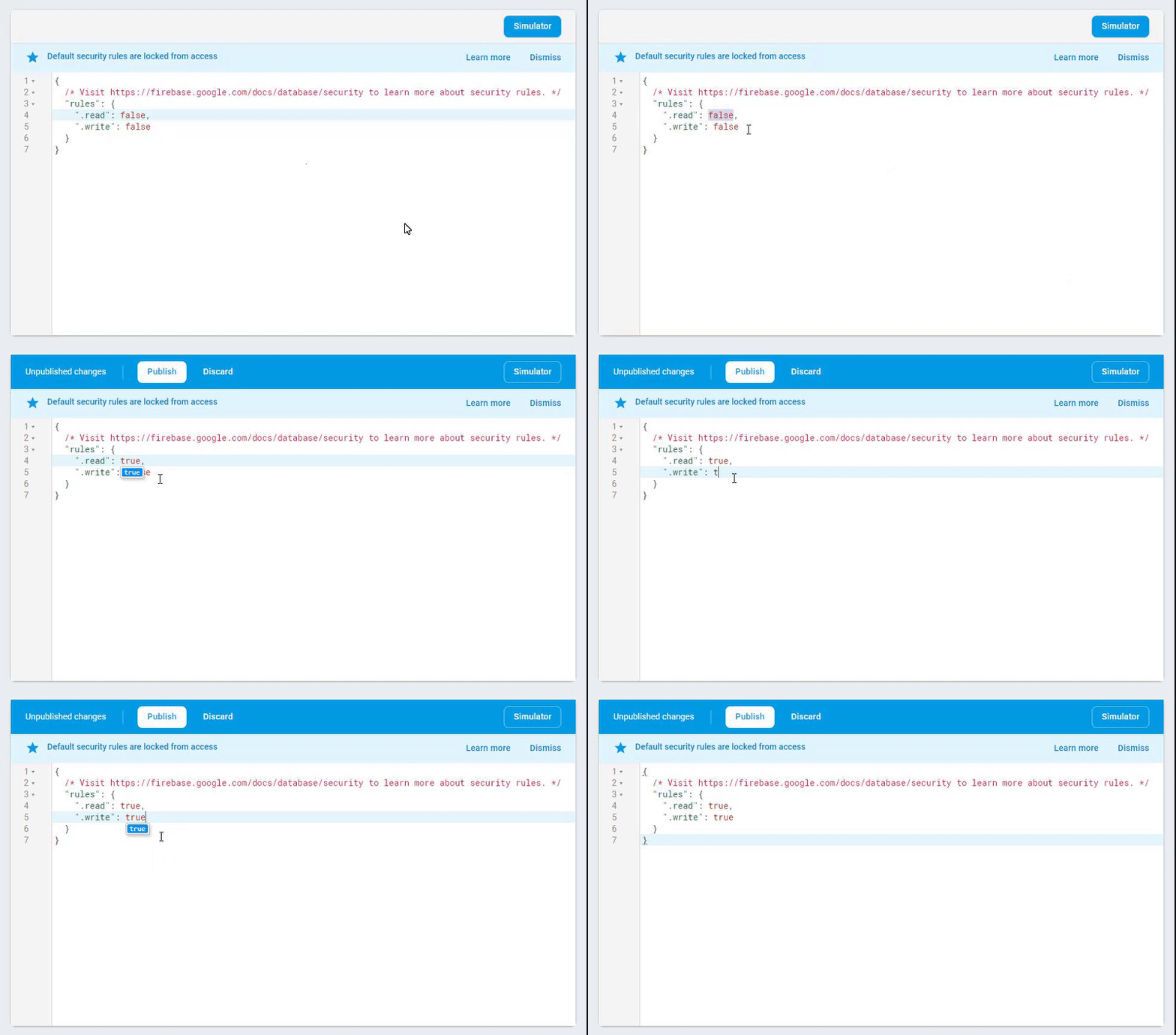
Now test to see if it works. Go on your mobile and upload an image, wait a few seconds then click download to see if you can receive it. If that works than you're ready to try it with another phone :). ALSO: On the second phone make sure all your API keys and URL's are the exact SAME as your first ones.
Monday, September 24, 2018


Subscribe to:
Posts (Atom)