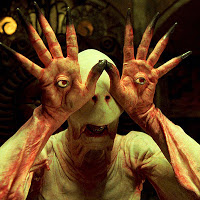
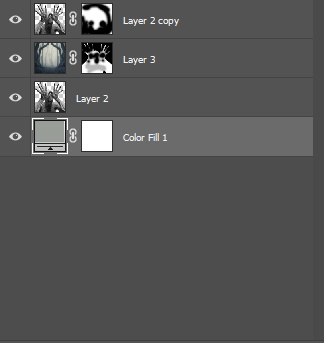
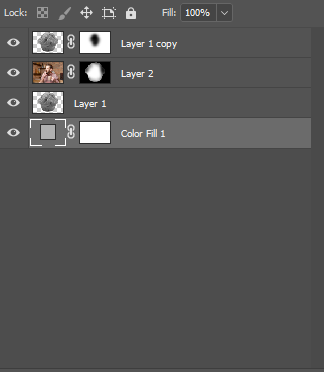
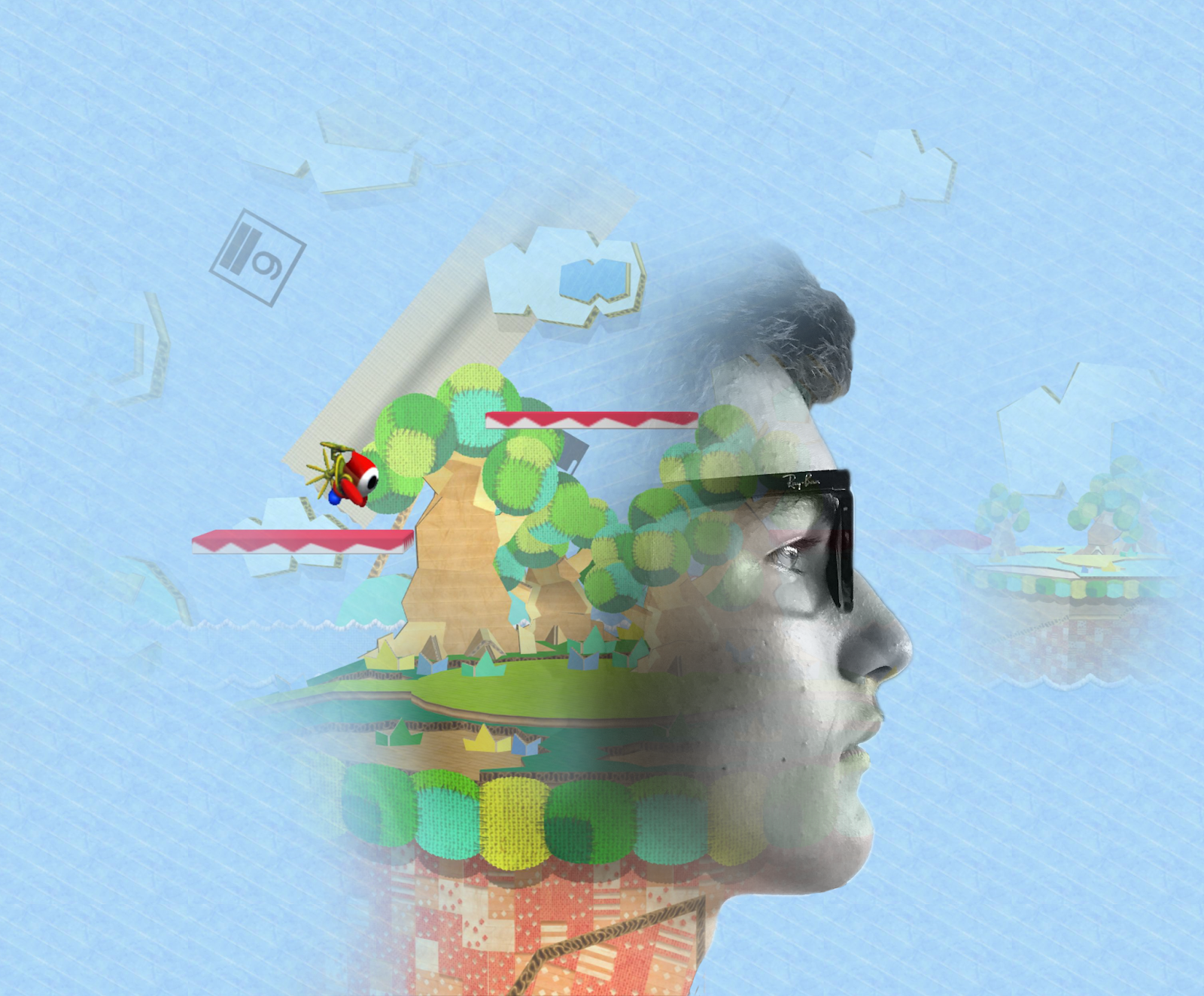
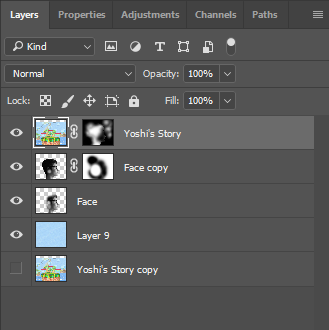
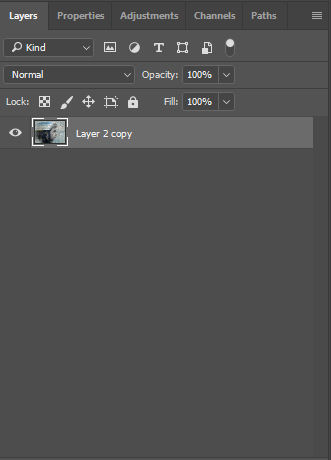
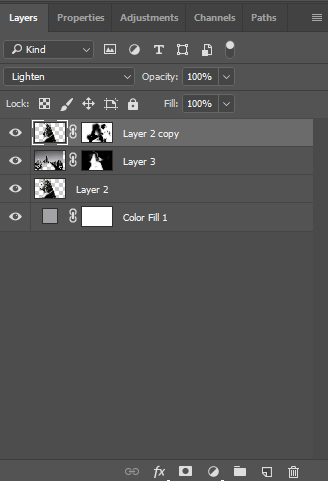
This process is called double exposure. This process gets an objects and exposes it within a background image. All I did was use the quick select tool to crop out the object and made a new layer with it. I then added a creepy forest background over it and then I selected the object layer and made a layer mask on the background with the silhouette of the object. I then duplicated the object layer and made a layer mask without any silhouette. I then used a black brush on the mask and just started getting rid of and adding stuff back.
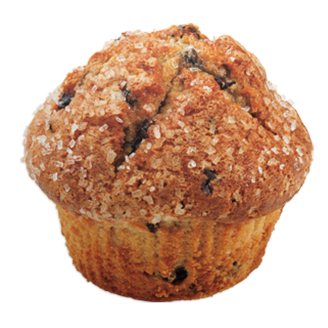
A guy eating a muffin inside of a muffin. The process is the same as the first part.
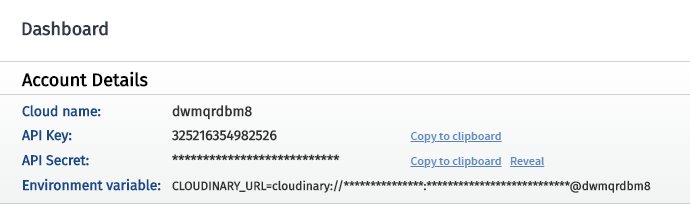
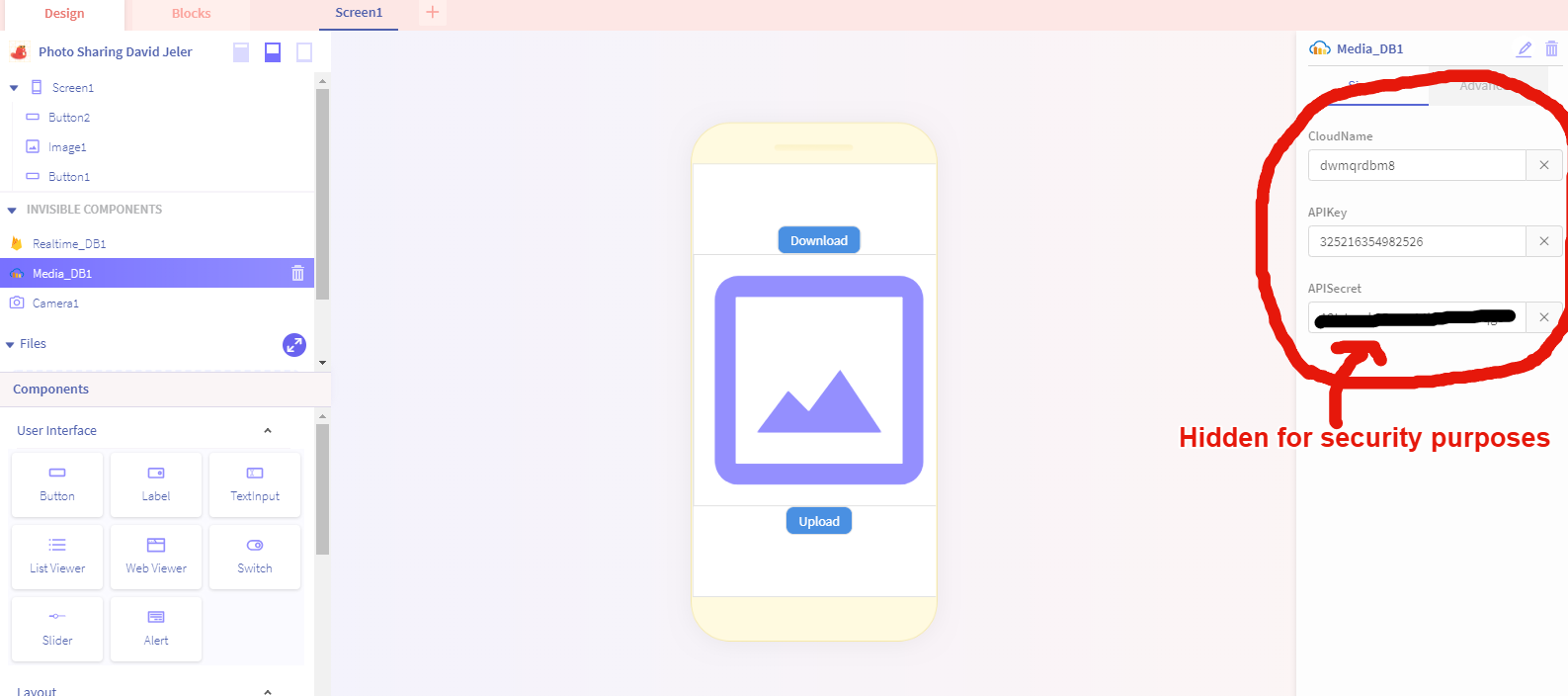
Go to your dashboard and copy and paste the Could name, API Key, and API Secret into thunkable:
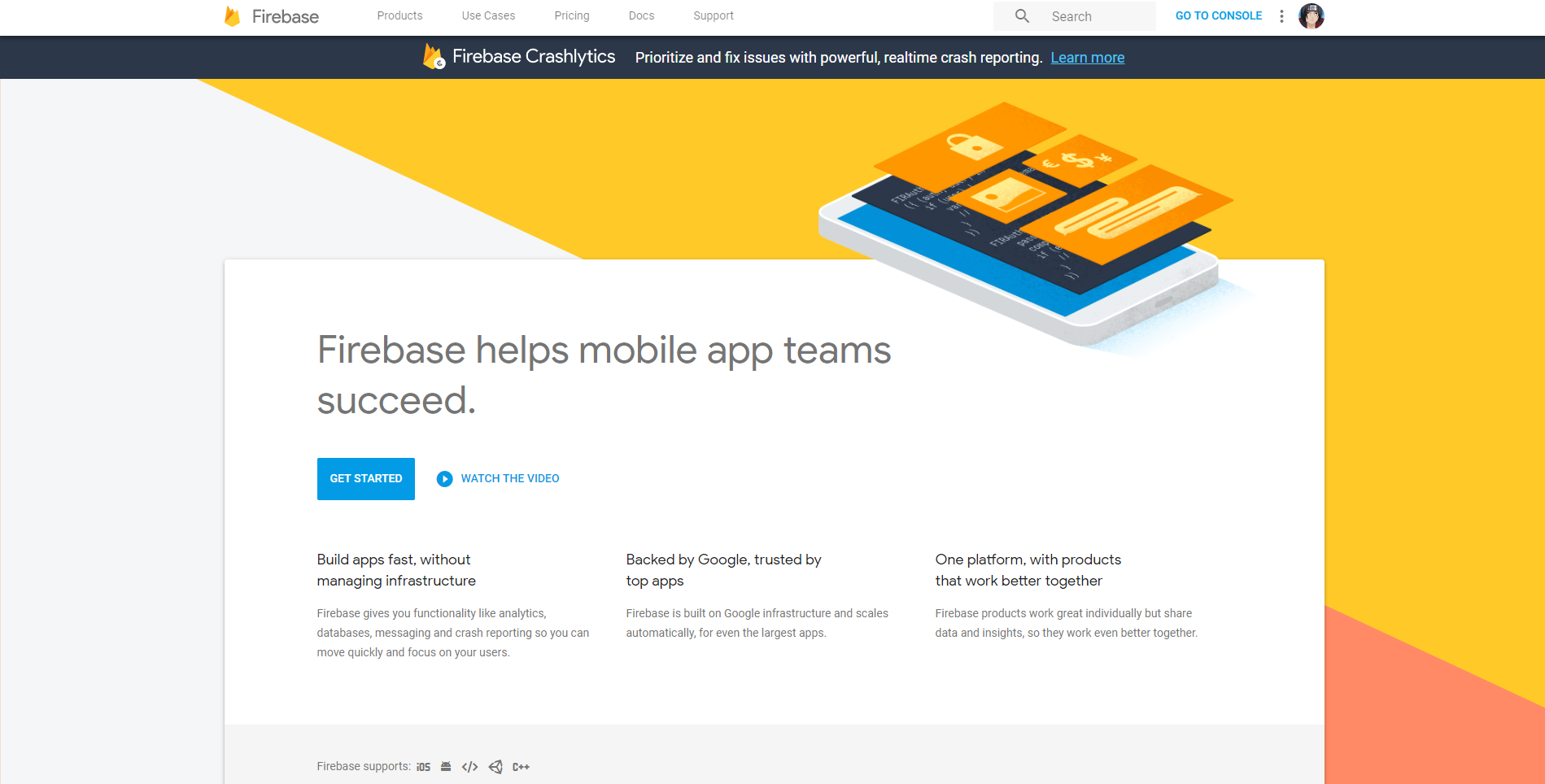
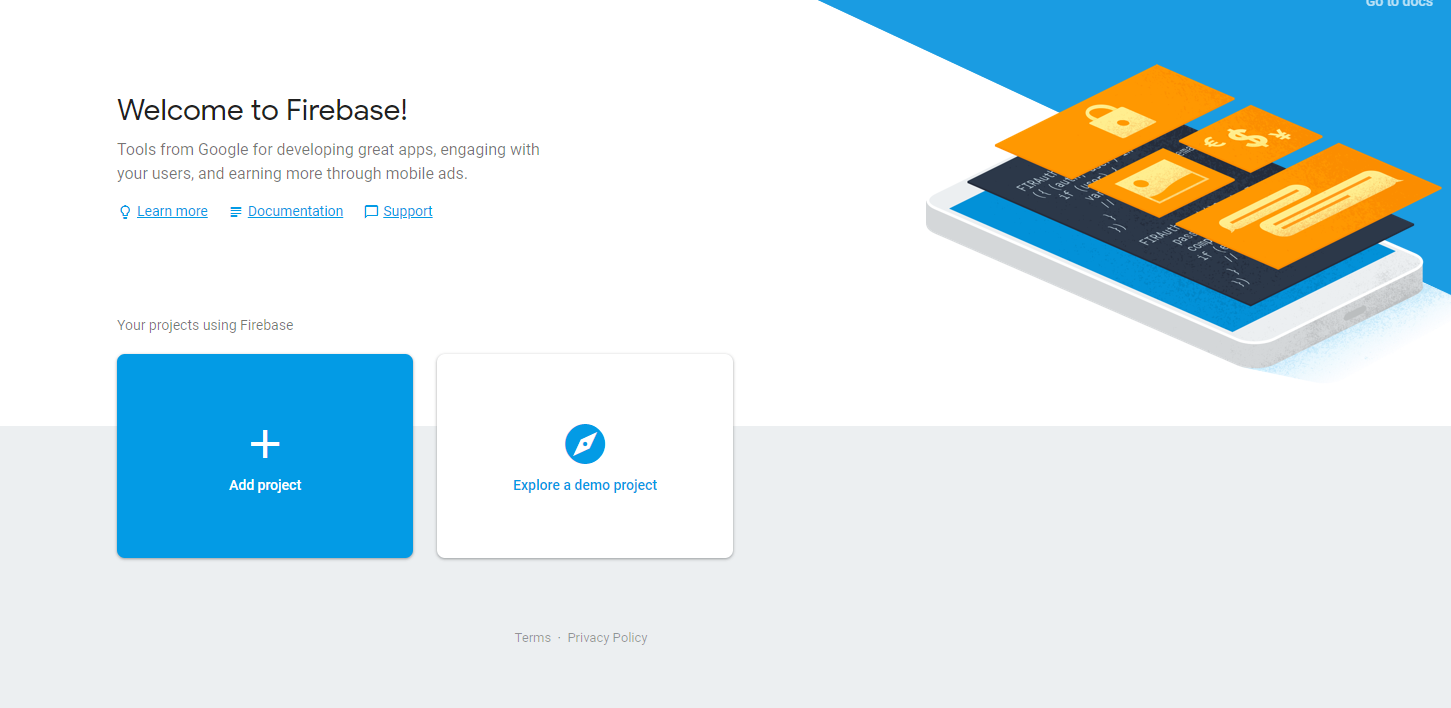
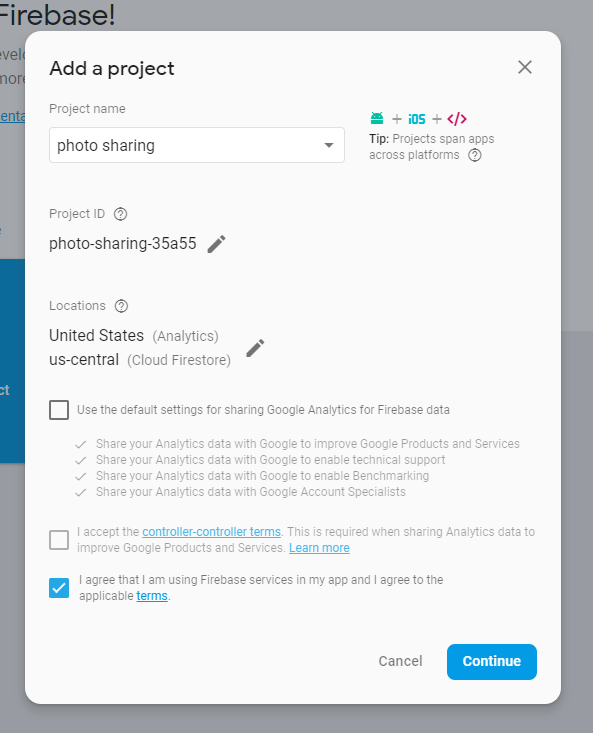
Now go to Firebase, log in with your google account, and create a new project:
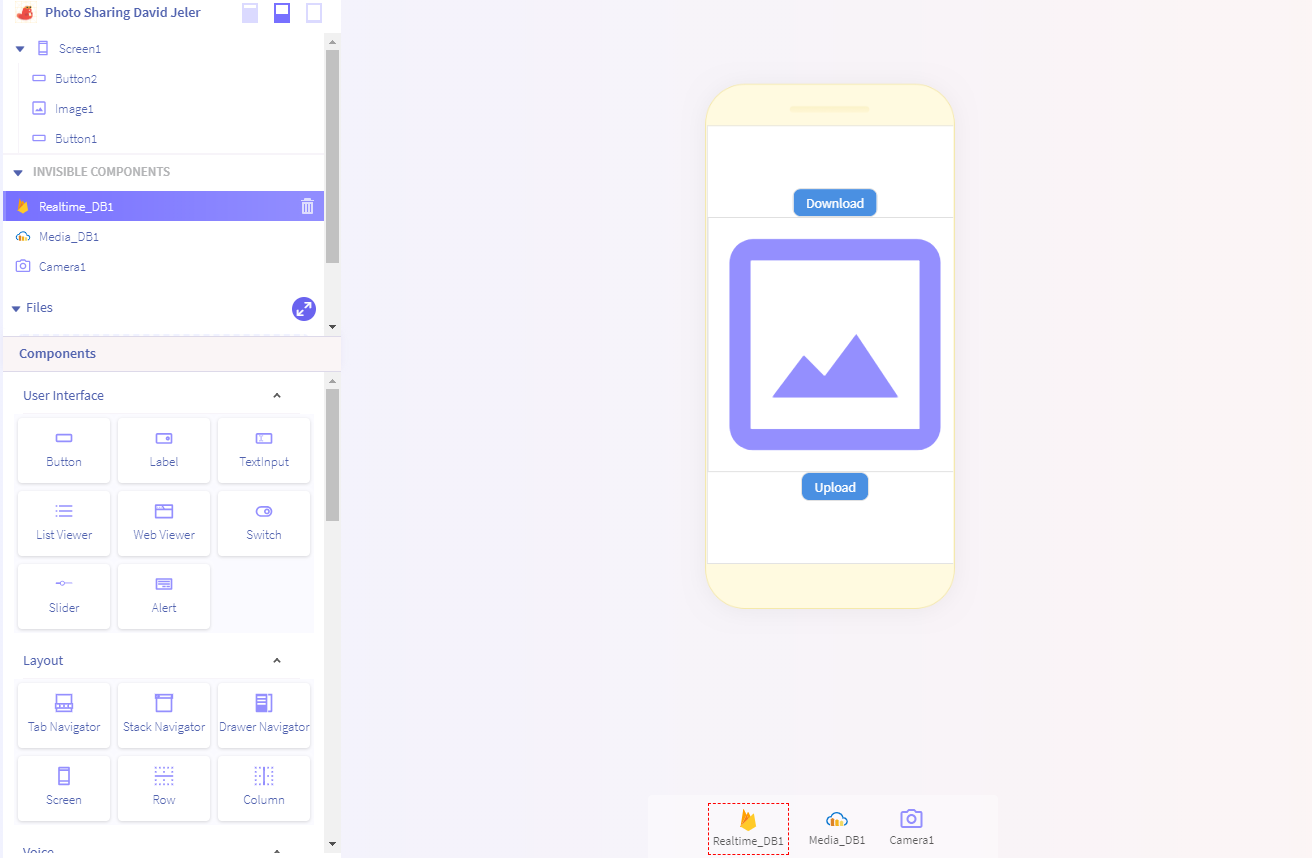
Next from the console, copy the API Key and Database URL (don't use mine) into Thunkable like I show below:
Next from the Firebase console, on the left side, go to Develop > Database and from there create a new database:
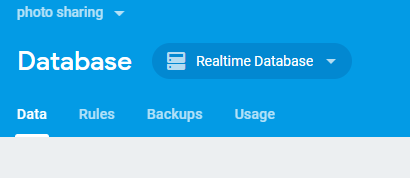
From there, at the top, switch to "Realtime Database"
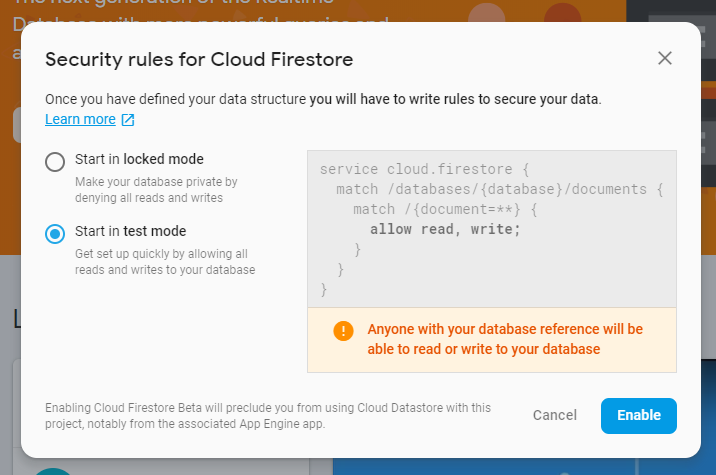
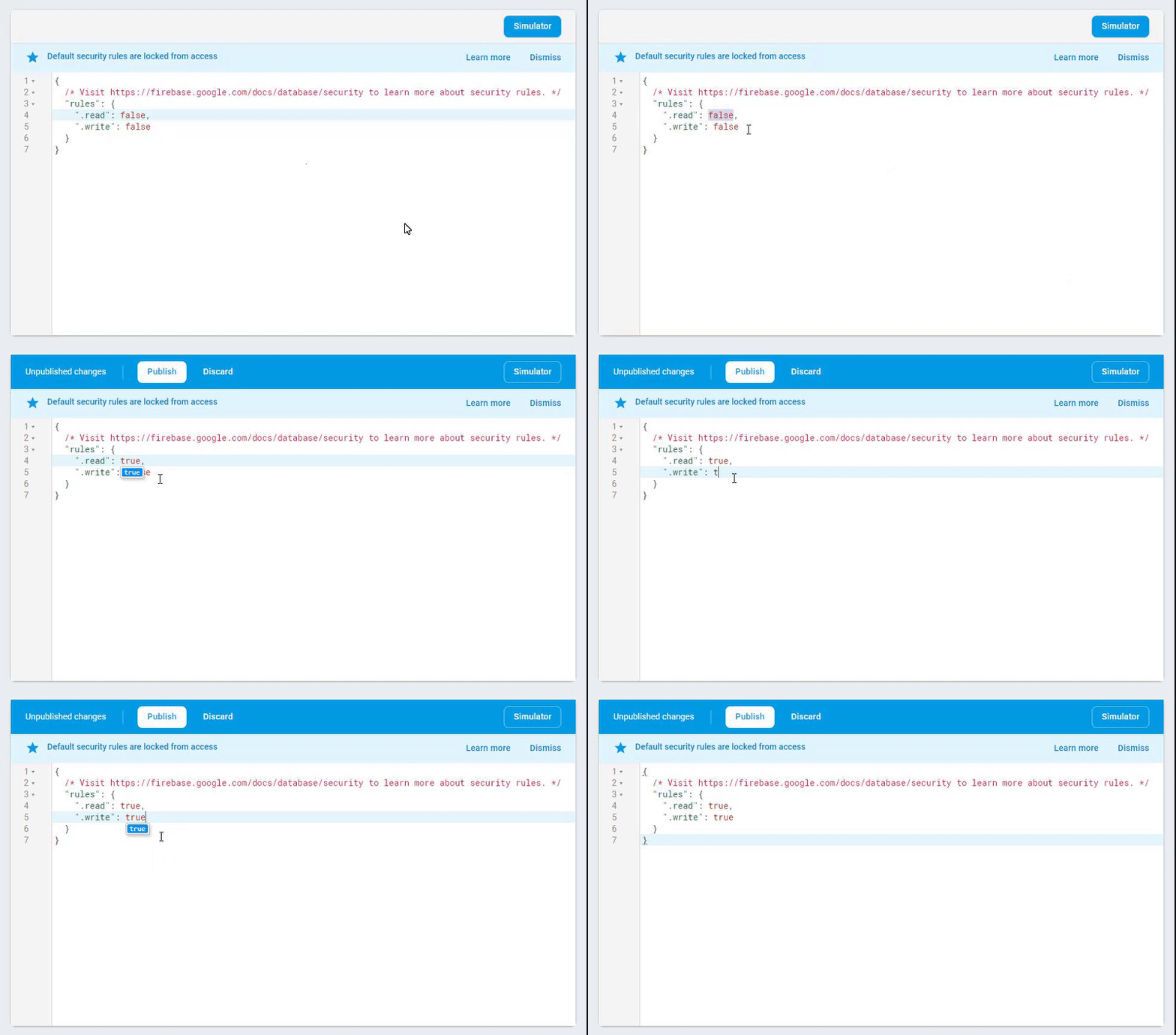
Then go to the "Rules" tab and switch the Read and Write permissions to: "True"
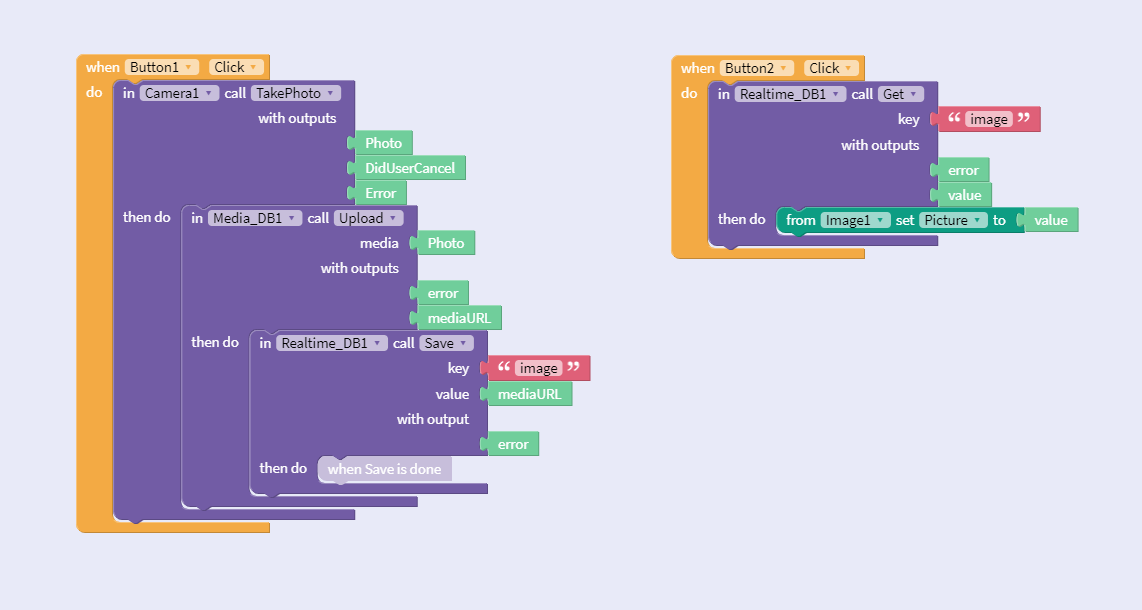
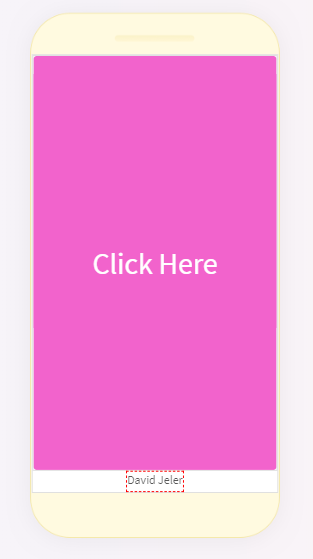
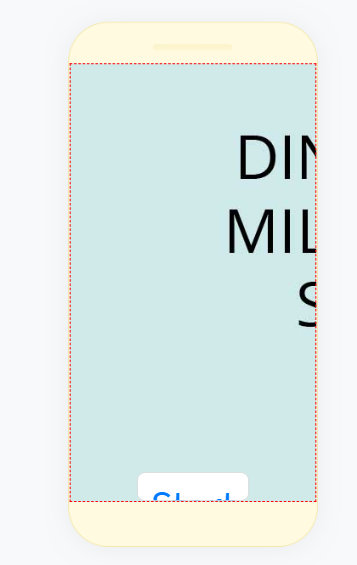
Now test to see if it works. Go on your mobile and upload an image, wait a few seconds then click download to see if you can receive it. If that works than you're ready to try it with another phone :). ALSO: On the second phone make sure all your API keys and URL's are the exact SAME as your first ones.
CTRL + T - Transform Tool (to modify the size of an image)
V - Move Tool (to move objects around)
CTRL + J - Create a new layer and copy the selection
CTRL + D - Deselect selection
CTRL + Shift + N - Invert Selection
T - Text Tool (create text)
2. Octopus
I used the quick selection tool (W) and selected the octopus. I then copied the selection (CTRL + C) and created a new document and pasted it in there to make it easier. I then used the eraser tool (E) and fine tuned the edges and stuff to make it look pretty smooth.